

FAQ Weiss

HELIOS

output level setting

The output voltage of our D/A Converters can be set in a few steps in the analog domain. This allows to set the output voltage such that the subsequent amplifier is properly driven.

This can be judged with the volume control potentiometer: The volume control should work in a decent range around the middle of the control range. For example, it should not be set to the start or the end of the control range to get proper loudness. So, choose the output voltage step, which allows for a “proper” volume control.

One must know that if the D/A Converter output level is too high, the amplifier input can be overloaded. The volume control in an amplifier is usually not located right at its input but somewhere in the signal path. So, the input amplifier can be overloaded even when the volume control is put down.
streaming over UPnP

Connect the unit to the router and stream directly in UPnP mode via media players such as mconnectHD, Audirvana, JPlay.

  • mconnect HD: iOS, Android – App that supports streaming from local storage, NAS, Tidal, Qobuz, Dropbox.
  • Audirvana: macOS, Windows, and Linux Desktop Applications with iOS/Android remote apps that support streaming from local storage, NAS, Tidal, and Qobuz.
  • JPlay: Windows Desktop or iOS application from local storage, NAS(Windows App), Tidal and Qobuz.

The Unit is both Audirvana and JPlay certified.

Setup Roon

Connect the Unit to your router with an Ethernet cable. Then, enable it in the Roon software as a playback device.

Roon will grab the playback device independently of the input you selected at the unit. When that happens, “Roon Ready” will appear on the unit display. Roon should be set up for playback.

Nonworking Inputs when connected to Roon

As long as Roon plays, the unit is locked to Roon. Stop the playback via Roon. After that, you may select any other input for playback.

If Roon’s playback is started again, Roon will grab the unit.

Fuse Replacement

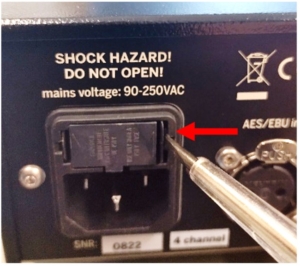
To change the fuses, you need a small slotted screwdriver.

To open the fuse box, you must first insert the screwdriver into the right-hand recess of the box.

Then, press lightly to the left. Then, you will hear a click.

Fuse Replacement

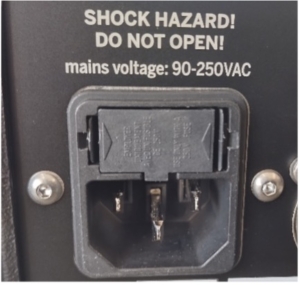
The fuse box will move slightly to the left. Then you have to do the same on the left side.

Fuse Replacement 1

The fuse box will now come out completely. You only have to pull it out.

Fuse Replacement 2

When you reinstall the fuse box, make sure that the box is completely in.


Fuse rating: 500 mA slow blow

Two fuses are required

Turn Off Display

Tap on „Setup“ on the touch screen. Then scroll down with the knob and tap on the appropriate entries.

There are two brightness settings, one for active and the other for standby. The brightness can be set to very low but not entirely off.

Cannot reach the Web Interface

We expect users to access the web interface through the URL, for example, http://helios-YourSerialnumber.local, rather than through the IP, which is harder to remember and might change over time.

If it still does not work, you may select “setup” on the touch screen and scroll down until you see the IP address of the unit. Check whether that address resembles a typical address of your LAN. If it seems to be a strange address (not, e.g., 192.168…. or 10.0….), the unit is likely not connected via Ethernet to your Router. In that case, check the Ethernet cabling.

Dropouts over USB

Use a USB cable that is as short as possible. Using “high-end HiFi” USB cables may cause issues. If you do so, try a standard USB cable from a computer store.

When playing on Windows, use the proper USB driver from our website. MacOS does not need a specific driver.

Ethernet Connection: Degradation of Sound Quality through switches/cables

The Ethernet data transfer is based on data packets, i.e., the timing (jitter) of the transfer is not critical for audio quality. The master clock for the audio section (D/A Converter) is located in the unit and dictates the data transfers as required.

If there are clicks or drop-outs, the Ethernet cabling may have to be checked. Do not use old or “high-end HiFi” Ethernet cables; use CAT6 or higher cables.

The need of Network “Cleaner”

You do not need a “cleaner.” The Ethernet connection is already isolated, and in the case of UPnP / Roon (and also USB) playback, the DAC is the master clock for the data transfers, so there isn’t any potential jitter issue.
